
Use the built-in USB player for a simple, infrequently changed landscape loop that someone on site can maintain. Shortlist an external signage player when remote updates, scheduled menus or portrait output are part of the brief. Buy the workflow as carefully as the screen.
Start with Tuesday morning, not the specification sheet
Imagine opening a café and discovering that yesterday’s special is still on the screen. The panel is working perfectly; the update process has failed. Before comparing players, decide who changes the content, where they work and what happens when they are away. A modest setup with a clear owner is more useful than a clever system nobody knows how to operate.
Write a short brief: one landscape menu, updated weekly by the manager, is a different job from three branches switching automatically between breakfast and lunch. These are illustrative scenarios, not installations we have tested. The point is to make the daily task explicit before adding hardware or a software subscription.
When a USB stick is enough
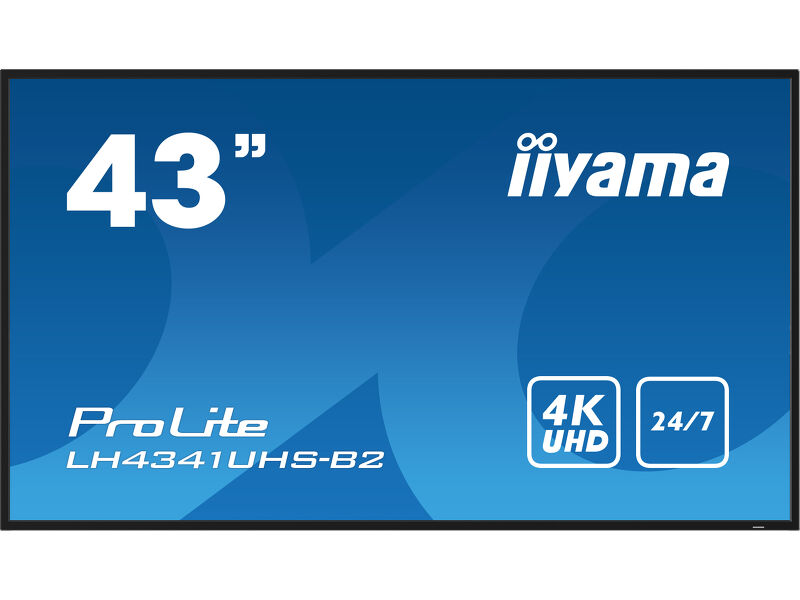
The iiyama LH4341UHS-B2 has a built-in media player for content from a flash drive or internal memory. That makes it a candidate for a straightforward local loop. Its specification lists USB media playback separately from its HDMI inputs; do not assume that a file accepted by your laptop will also play on the display.
For a single screen with occasional updates, prepare a small set of approved files and keep an identical backup. Check the exact manual for formats, codecs and storage requirements, then test the actual exported files. An MP4 extension alone does not tell you how the video was encoded. Ask for a demonstration of looping, slide timing and startup using your content.
The practical cost is the visit to the screen. Check whether a member of staff can reach the USB port safely after installation. If changing the menu requires moving a heavy wall-mounted display, a cheap playback method can become an awkward operating routine.
The screen is only half the playback decision.
 View on Amazon ↗
43″ · LH4341UHS-B2
What an external HDMI player changes
An external player generates the picture and sends it to the display over HDMI. The player and its software determine the available scheduling, remote publishing and layout features. A display with an HDMI socket does not, by itself, include those services. Ask which features require a paid plan and whether each screen needs a separate licence.
For the LH4341UHS-B2, iiyama describes LAN control as network access to display menu adjustments, with software not included. That statement does not establish a content-management service. Keep remote control of the panel separate from uploading a new menu or changing a playlist.
A laptop can help demonstrate content, but leaving a general office computer connected introduces other questions: sleep settings, notifications, updates and who owns the login. For unattended use, ask the supplier to demonstrate automatic recovery and document how staff restore the display without relying on one person’s account.
Portrait is a separate buying decision
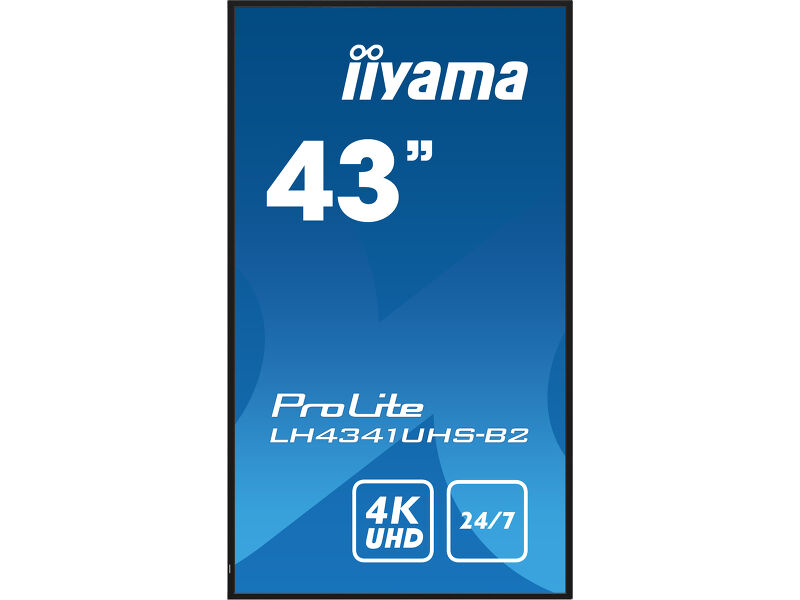
The LH4341UHS-B2 supports portrait installation, but iiyama explicitly excludes pivot support from its built-in media playback. For a tall menu on this model, plan around a verified portrait-capable source rather than assuming the USB workflow will rotate with the cabinet.
Give the player supplier the screen model, desired orientation and final artwork. Ask to see text upright and correctly proportioned, with no cropped prices or wasted borders. Confirm the permitted mounting direction in the display instructions as well. Physical installation and image rotation need to agree; a portrait option somewhere in a software menu is not a complete demonstration.
Same display. A different content brief.
View on Amazon ↗43″ · LH4341UHS-B2
 View on Amazon ↗
43″ · Portrait installation
An internet outage should have a known outcome
A cloud-managed system may store some content locally, but offline behaviour varies by player and content type. Yodeck’s documentation, for example, distinguishes downloaded media from content that needs an internet connection and says playback eventually stops after roughly 30–40 days offline. It is an example of a limit to check, not a recommendation that every player behaves the same way.
Ask what remains on screen if the connection disappears during opening hours. A saved menu image and a live webpage are different tests. Also check whether a scheduled change still happens, whether old content remains visible and how staff can tell that an update has not arrived. Choose a suitable fallback message for information that could become misleading when stale.
Work out the update cost before adding a subscription
Here is a planning example, using assumed figures rather than supplier prices. Suppose changing a USB menu takes ten minutes, twice a week. Over 52 weeks that is 1,040 minutes, or about 17.3 hours. At an assumed staff cost of £15 per hour, the handling time is about £260 a year. It excludes creating the artwork, which either setup still needs.
Compare the part of that time a managed player could actually save with its hardware, subscription, support and extra electricity costs. A single annual promotion is unlikely to justify the same system as daily changes across several branches. Remote publishing also needs someone to approve the content and confirm it reached the right screen. It does not remove that responsibility.
Our handover checklist
Before accepting the installation, run these checks with the final files and normal staff instructions. This is a proposed acceptance checklist, not a claim that we have performed these tests on the shortlisted displays.
Our preference is to start with the simplest method that meets the actual update brief. Keep USB for a manageable local loop; specify and demonstrate an external player when the operating task needs more. The display, player and content are separate purchases only on the invoice. In daily use they have to work as one setup.
- Restart the screen and player after a safe power cycle; confirm the correct content returns without a login or remote-control sequence.
- Publish a revised price or message, then check the physical screen rather than only the software preview.
- Try the intended portrait or landscape artwork and inspect the smallest text from the real viewing position.
- Disconnect the network where applicable and check the agreed fallback, then reconnect and confirm updates resume.
- Record the player model, software plan, support contact and the person responsible for content changes.
Sources and review basis
Product facts come from the sources below. Application suggestions and buying checks are our editorial judgement. We have not carried out hands-on tests or measured these displays.