
A portrait-capable display does not guarantee portrait playback from its built-in player. Confirm the mounting instructions, source output and content layout as one working setup.
Three separate decisions
A portrait sign involves the physical screen, the device generating the picture and the design of the content. All three need to agree. Rotating the cabinet deals only with the first. A player may still send a landscape image, and a landscape menu may be unsuitable even after the picture has been rotated.
Start by writing down the intended workflow: who creates the content, which application exports it, which device plays it and which input the display uses. This makes the gaps visible before a screen is fixed to the wall. It also gives a supplier something concrete to demonstrate.
A real example from the iiyama LH41 range
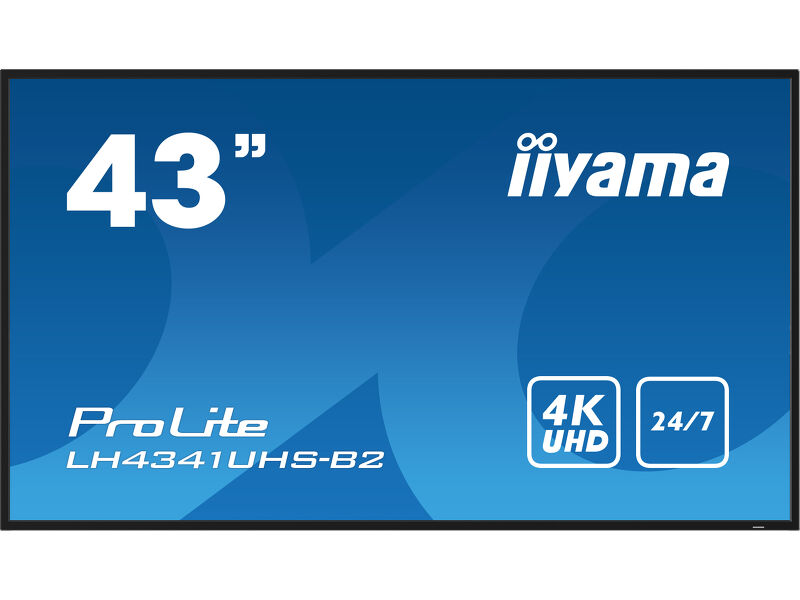
The LH4341UHS-B2, LH5041UHS-B2AG and LH5541UHS-B2 support portrait mounting, but their UK media playback entries exclude pivot. That is a useful example of why a headline feature should not be read as a promise about every content source.
For these models, plan a compatible external source for a portrait workflow and verify it. Do not buy on the assumption that a USB memory stick will provide the desired result. If built-in portrait playback is essential, ask the manufacturer or supplier to identify and demonstrate a suitable alternative.
Same display. A different content brief.
 View on Amazon ↗
43″ · LH4341UHS-B2
 View on Amazon ↗
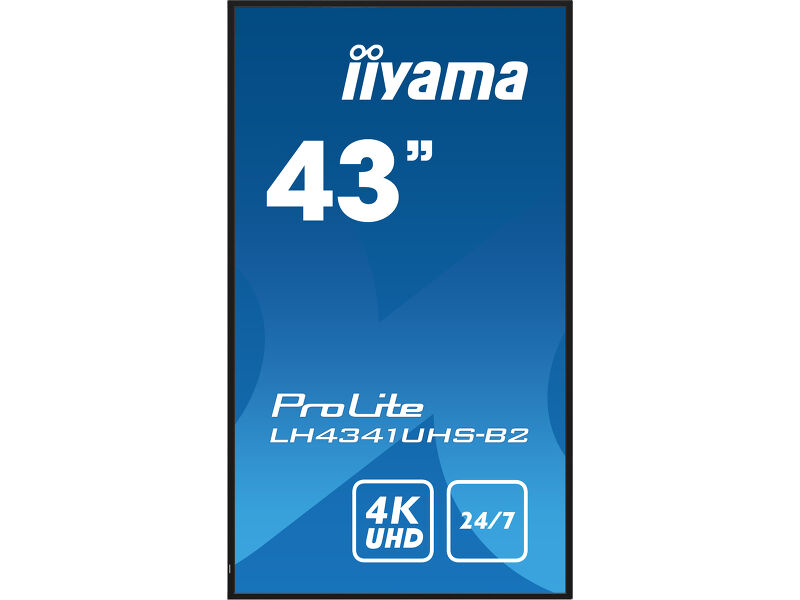
43″ · Portrait installation
Prepare content for the actual canvas
A conventional landscape screen uses a wide layout; portrait content needs a tall one. ScreenCloud’s own documentation gives a 9:16 example such as 1080 × 1920 and notes that resolution support also depends on the playback device. A design tool accepting a canvas size does not prove that the chosen hardware can output it.
Create a portrait design rather than shrinking a landscape page into the centre of the screen. Keep important text away from the edges and check for cropping, stretching and black bars. Use the player’s documented fitting mode and verify the result on the intended display, not only in the editor preview.
Prove startup and recovery
Our suggested acceptance check is simple: start the whole system from power off and confirm that it returns to the correct input, orientation and content. Repeat the check after the player restarts. If the system relies on a network service, test its documented behaviour when the connection is unavailable.
This is a test plan, not a claim about features of every screen or player. Record which steps worked and which settings were required. The staff member opening the premises should not have to discover a hidden orientation setting every morning.
Test the content, not just the rotation.
View on Amazon ↗43″ · Portrait installation
Keep installation separate from content adjustments
Follow the exact model’s mounting instructions, including the permitted rotation direction and ventilation requirements. An installer should check the bracket, cable access and wall suitability. A software rotation setting cannot make an unsupported physical installation acceptable.
Before placing an order, ask one direct question: can the proposed screen and player show this exact file, in this orientation, and return to it after a restart? A demonstrated answer is much more useful than a general statement that both products support digital signage.
Sources and review basis
Product facts come from the sources below. Application suggestions and buying checks are our editorial judgement. We have not carried out hands-on tests or measured these displays.