
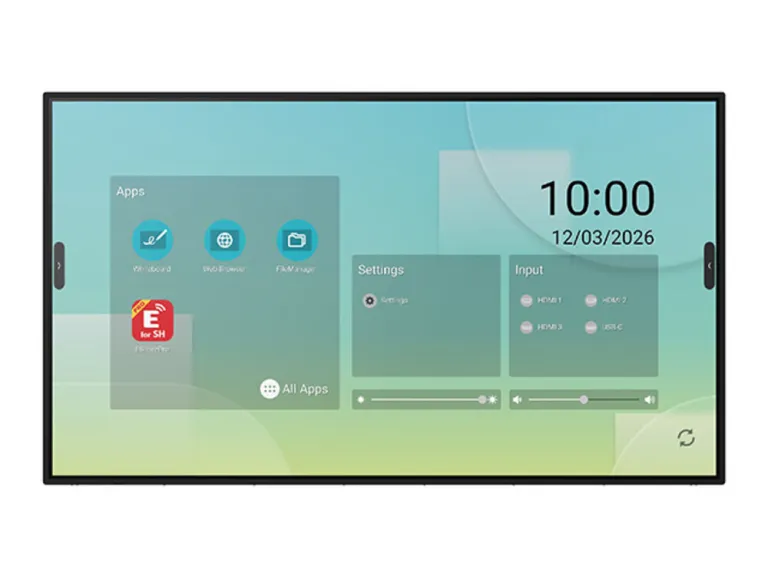
Shortlist the PN-LB653 when people will write, annotate and collaborate at the screen. For simple presentations or unattended signage, first ask whether you need touch at all. The laptop workflow, wireless bundle and installation matter as much as the panel.
What is the Sharp PN-LB653?
The PN-LB653 is a 65-inch interactive display. Sharp also calls it the LB653, while PNLB653 is the order code you may see in a catalogue. It belongs on a meeting-room or teaching-space shortlist where people need to work on the screen together. It is a different proposition from buying a large panel simply to loop a menu or show a welcome message.
Think about a project team marking up a floor plan. Being able to stand at the display, move between material and annotate it could be useful. If everyone stays seated and the presenter only advances slides, the touch capability may add less value. That distinction is a better starting point than the diagonal size.
This article is a specification-based assessment. We have not tested writing latency, wireless reliability or the display in a working room. Our recommendations are buying judgements based on the manufacturer sources linked below.
A 65-inch screen is not a room-size guarantee
Sharp specifies a 4K IPS panel and anti-glare glass. Its 500 cd/m² brightness figure is measured without the glass, an important qualification when comparing specifications. Those details describe the hardware; they do not prove that a spreadsheet will be readable from your furthest seat.
Try your normal presentation rather than a supplier’s full-screen photograph. Open the budget table, drawing or document people actually discuss, keep its usual layout and check the smallest meaningful text from the back of the room. If the presenter must keep zooming in, change the content layout or consider a larger display.
Also think about the person standing at the screen. They need space to reach controls and write without blocking the whole picture. A screen positioned high for seated viewing may be awkward for regular handwriting. Plan that compromise before the wall fixing height is agreed.
Touch: ask for a demonstration with your own laptop
The published specification lists infrared touch with up to 40 simultaneous contacts, Windows Ink and palm rejection. Sharp lists Mac OS support as single touch. The maximum contact count is therefore not a promise that every operating system and application behaves identically.
For a useful demonstration, bring a representative laptop and a file staff recognise. Try writing, resting a hand against the screen, selecting small controls and saving the result somewhere the next person can find it. Invite a second participant to contribute. Smoothly completing that task matters more than reaching the headline touch count.
If your organisation uses both Windows and Mac computers, try both. Ask the supplier to record which features work with the agreed application and connection method. Do not treat a successful whiteboard demonstration on the built-in system as proof that a separate desktop application will offer the same tools.
USB-C makes the connection simpler, but check the port
The main USB-C input supports video, touch, data and up to 100W power delivery. The second USB-C connection is specified for peripherals and 7.5W; the two ports are not interchangeable. The display also has three HDMI inputs and a USB-B touch connection.
For laptop-led meetings, check the complete chain: laptop port, cable, display input and required peripherals. A USB-C connector shape alone does not establish video support or the charging level your laptop will accept. Test the exact cable length planned for the room, including any routing through furniture.
Ask for the room to be handed over with a clear connection instruction. A guest should be able to identify the correct cable without guessing. If HDMI is your fallback, have the installer demonstrate how touch reaches the computer in that arrangement as well.
Plan the laptop connection as part of the room.
 Manufacturer specifications ↗
65″ · PN-LB653
Android and EDLA: decide who manages the shared screen
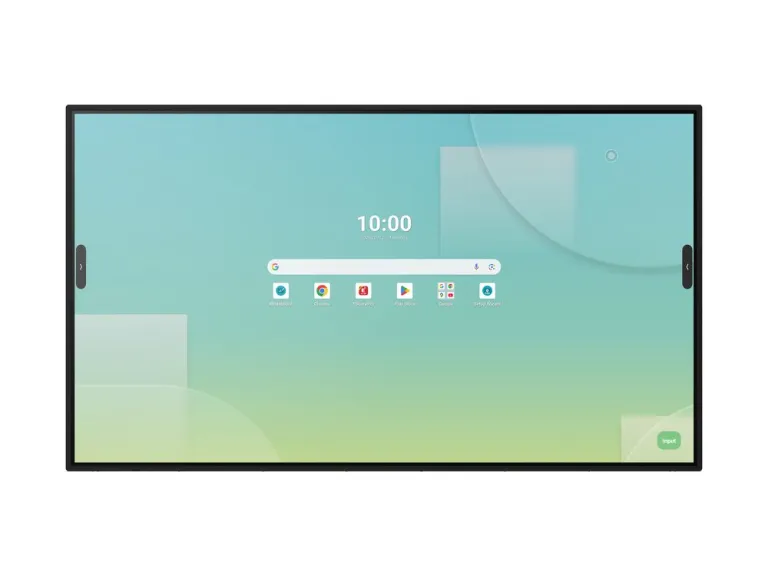
The built-in platform runs Android 14 with Google EDLA certification, 8GB RAM and 64GB storage. Sharp lists a whiteboard, Google Play Store and EShare screen sharing among its applications. This gives the display a way to work without always showing a connected laptop.
That convenience brings an ownership question: whose accounts and documents will be on a shared device? Before deployment, agree who can install apps, how guest users work, how saved notes are removed and who checks software updates. Ask the supplier for the support policy and update arrangements in writing; a current operating-system version is not a published end date for support.
We would favour a short, repeatable start-and-finish routine. Staff should know how to open a session, save what they need and leave the room ready for the next group. Demonstrate that routine before letting a growing collection of personal sign-ins become the default.
Check Wi-Fi and meeting accessories in the actual quote
The UK specification lists Wi-Fi and Bluetooth through an optional dongle. Do not assume the base PNLB653 includes wireless hardware. Ask whether a quoted bundle includes the adapter, and get its contents written down rather than relying on a short product title.
A screen-sharing feature is not, on its own, a complete video meeting room. Confirm the camera and microphone arrangement separately, along with the meeting application, any licences and which device runs the call. Ask someone at the far end to judge the demonstration: being able to see your slides does not establish that they can hear every participant.
Compare itemised quotes. A lower display price can be overtaken by the mount, wireless option, camera, cabling and installation. Separate essentials for your room from accessories that are merely available. That keeps the purchase focused and makes competing proposals easier to compare.
Installation and operating hours: the limits to keep in view
Sharp rates the PN-LB653 for 18/7 operation and supports landscape and portrait mounting. Its cabinet is 1,487 × 862 × 87 mm and weighs 35kg; the specified fixing pattern is VESA 600 × 400mm with M8 screws. The separate 48kg figure is the packaged weight, not the bare display weight.
Use those figures as inputs to a competent installation assessment. The wall or trolley, fixing method, access route and writing height still need checking. A matching VESA pattern alone is not a complete suitability check for a mount, particularly when people will press against the panel during use.
For a portrait installation, demonstrate the intended application in that orientation and follow the exact mounting instructions. For overnight or continuously operating signage, choose equipment whose published operating schedule covers the requirement. An interactive panel can be the wrong purchase even when its screen size looks right.
Our verdict: shortlist it when interaction earns its place
The PN-LB653 is worth assessing for teams that regularly annotate, teach or work through material together at the screen. The deciding question is whether those activities genuinely happen in your room. Buying an interactive display for occasional slides alone can leave much of the investment unused.
Before ordering, we would ask for a demonstration using your laptops, your content and your likely guest workflow. Include a wireless session if wireless is part of the quote. Finish by saving the notes, ending the session and starting again as a different user. That is a more useful acceptance test than a polished promotional video.
For an ordinary reception message or menu loop, start with the signage guides linked below. For a collaboration room, get the full installed system priced and agree who supports it. The best shortlist is one that reflects how the room will actually be used, not simply the number of features available.
- Confirm the exact model and whether the wireless adapter is included.
- Test your laptop connection, touch application and any conferencing peripherals together.
- Check readability from the furthest seat and comfortable writing height at the screen.
- Agree installation, support, account handling and the daily operating schedule before purchase.
Sources and review basis
Product facts come from the sources below. Application suggestions and buying checks are our editorial judgement. We have not carried out hands-on tests or measured these displays.